
Thursday, March 15, 2018

Tech Tip Thursday

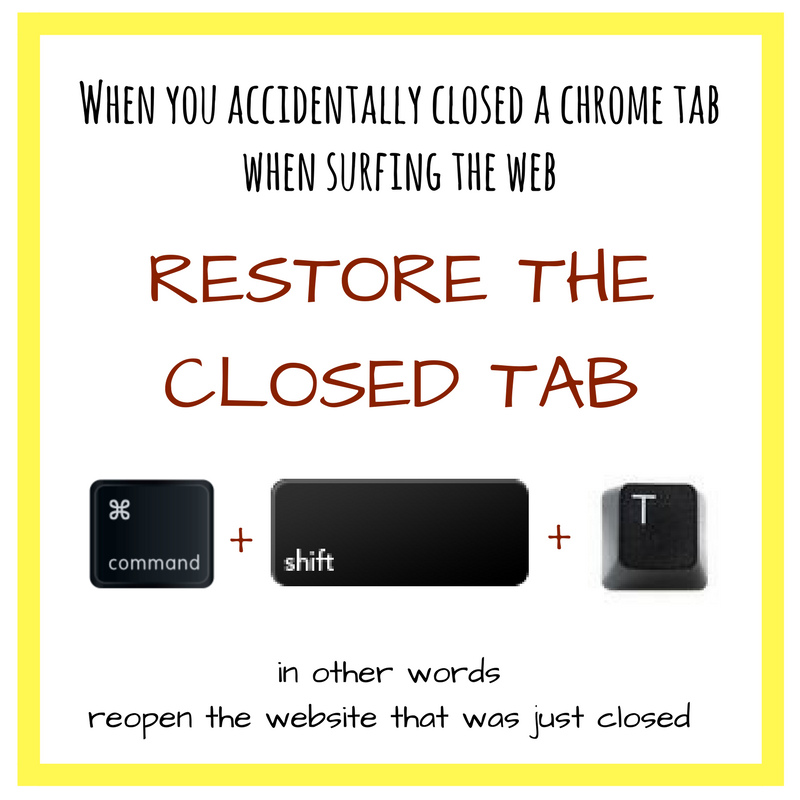
I just hate it when I accidently closed a tab or closed it on purpose then realize that I need that tab. That is the worst! To have to go through your history to try to figure out which website it was, and you can't go back on the browser since it was on a different tab!

But now you have learned a solution to that problem. You are able to go back to the last closed tab by simply clicking Command, Shift, and T. And like majic the closed tab opens up again.

Thursday, March 8, 2018

Tech Tip Thursday


Emojis have become a big part of society and our student's lives. Especially when a movie was created about emojis.

As teachers, we try hard to stay current with what students like and what gets their attention to include in our lessons. Especially for those students who have a hard time learning or those who are not interested. I know for a fact that my son's teacher has used his love of Super Mario and goats to get him interested and involved in his learning. He got very excited when he saw his homework had a word problem with his name and him counting goats.

With emojis being everywhere how can we include them in our papers, notes, worksheets, and anything else we create? That is what this tip is about. Instead of having to search Google for an emoji image, finding the right one, maybe having to crop it. There is a simpler way, especially on a Mac! Emojis are part of Mac's keyboard. Simply press Control, Command, and the Spacebar at the same time and a box with emojis should pop up.

Don't forget that you can also use a chrome extension for Bitmojis, the other current trend. You can use Bitmojis for assignments just like the regular emojis. I like using Bitmojis in Google Classroom. When students complete an electronic assignment, I like going through their work making comments and leaving a little of my personality there. Students love this and get excited to see their work personalized for them.

I would not recommend letting students create and use their own Bitmoji, especially for classroom use. There are nonschool appropriate Bitmojis available and there is no way to sensor nor parental control settings (hopefully they will create a school version of Bitmoji soon). But for now, you can use this Disney Emoji maker. It doesn't work the same way as Bitmoji but it allows the students to create their own character and save the image.

Bitmoji Chrome Extension link: Here
Bitmoji website: Here

Thursday, March 1, 2018

Tech Tip Thursday

Many people can share the same file and easily find it by "moving" the file to another folder. This trick works like a copy and paste. It keep the original file in its original location, but can also be found in the new location.

If you make changes in one of the files it also makes the changes to the orignal copy and vise versa.

Thursday, February 22, 2018

Tech Tip Thursday

On Parent Night or other events throughout the school year, I tend to set up a slideshow with pictures of things that have happened in our classroom. With parents coming in and out and asking questions, it becomes difficult to keep tabs on the slideshow and restart it. 

With this trick, I am able to still create my slideshow but also have it play without needing my assistance every time it ends.

Thursday, February 15, 2018

Tech Tip Thursday

If you are anything like me drawing is not your strong suit. When it comes to drawing I rather stick to teaching, especially since my students make fun of my drawing when I try to draw. Since I don't know how to draw, sometimes it is a challenge to find a clipart or logo that fits my needs. 
Autodraw is a lifesaver when it comes to drawing. The program allows you to draw or attempt to draw the image you are searching for. As you are drawing the program will automatically search for an image that may be similar to what you are drawing. Autodraw tries to guess what you are drawing by giving you an array of possible matches. (This is a fun game to play to test your drawing skills).

Once you find the perfect image, you are able to modify it. How great is that! 

Friday, February 9, 2018

Epic!

My students LOVE using Epic! It has motivated many of my students to love reading for fun. My students love the program so much that they ask to go on Epic! when they finish their work. Sometimes I even have to tell them, "Right now is not the appropriate time to be on Epic! you should be doing your math work, reading activity, etc." I have even caught students listening to their newly discovered Goosebumps audiobooks while working on their math work, snack time, or during morning work.

But what makes Epic! so great for teachers? That is simple. I don't like Epic! simply because my students like it, I love the program too. IT IS FREE for teachers, there are many resources, a variety of books, and its fun to see my students excited about reading.
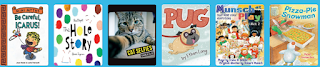
Epic! has a large number of books available for students and teachers. The best part is that the books that are available are an electronic version of actual books that students are familiar with, meaning they are published books.
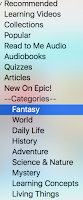
Within a large number of books, there are many fiction and nonfiction books. The books are from a large variety of categories that are categorized for students and teachers to search through, especially for the times that you want to read a new book to the class or to use a new book for a lesson.
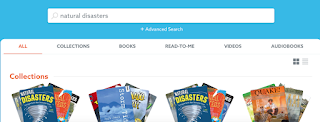
When searching for a specific book or a subject, there are many different forms of books to go through. This makes it easy to search for the perfect book to go with any unit or concept.
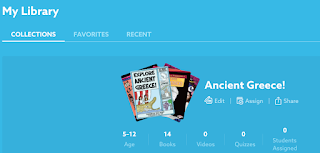
Once you find the perfect pre-made collection of books or a series of books, you can add them to your own personal library for future use or easy access. When starting a new unit I love creating collections or using one that was already created by another teacher. This way once I give my students access they are able to read pre-determined books about a specific concept. Your collection can be shared with students or even other teachers. You also have an option to make your collection public so that other teachers can use your collection and save time for others or you can save time by using the collection made by another teacher.
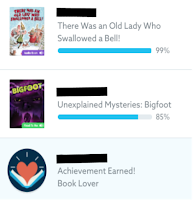
Once students take off with their reading there are different data that the teachers can use. There is an activity feed where the teacher can view what students are currently reading, their reading progress for the book, and any achievements that students receive.


As the teacher, you also have access to your class list with the students reading stats (books finished, hours read, and last time they were active in their account). Not only do you get that information for each student you get to see the progress made as a classroom and set goals for the class.
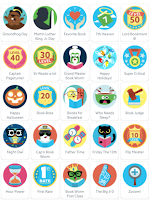
But the best part of Epic! is that students love the program! As a teacher, you can find programs that you believe are great, but if students do not buy into the program then it won't be successful. Students love logging into Epic! since they get a chance to choose their own avatar and collect badges (achievement rewards).  There is a long list of badges that they can earn, from reading at night, zooming into a book, to holiday badges. Students love these. Especially when they can see and compare each other's amount of badges, just like they can when they go to log into the Epic! There is a class list with their names and their avatar. Under their avatar, there is a number indicating the number of badges earned. I always hear my students saying "Oh I have 20 badges and so and so has 19."

With all the student motivators, a vast amount of books, and ability to search for specific books, this makes for a great resource. My students love using Epic!
Thursday, February 8, 2018

Tech Tip Thursday


Have you ever copied and pasted something from online or another document? After pasting the text, it looks different than the rest of your text. The font is a different style, different color, or/and different size. What a nightmare!!!

After pasting to the new document, you are left with changing the font style, size, and color to look like the rest of your document, wasting your time. But there is an easier way to copy and paste, that is a time saver. I will never copy and paste the same way.

I love the fact that you can paste text by using the surrounding text setting. Now I can simply paste the text and continue working without having to worry about my document visually looks. At first, when you have to press all the buttons (command, option, shift, and v) at the same time, it feels strange as the habit is to simply press command v. Even though it may feel strange and it requires a lot of fingers the end product is worth it.


*This tip is for Mac products. For a PC, use Control instead of Command.

Thursday, January 25, 2018

Tech Tip Thursday

Online manipulatives are helpful especially in this tech era, and it helps teachers that may not have the necessary manipulatives.

Virtual manipulatives are also easily available for students who may need the extra support.

Thursday, January 18, 2018

Tech Tip Thursday

Need to share a file from your Google Drive but do not want for everyone edit your master copy?

The easiest way to share a file and have everyone it was shared with have their own copy of the file is simply by changing the end of the link.

When you are going to share a Google Drive file, there is a shareable link that ends with edit?usp=sharing

For example:


In order to still share the file but force the reciever to create their own copy of the file replace the edit?usp=sharing with copy

As a result the recipent will still be able to view and edit the file but they must first make their own copy.

This is a great tool for using in classrooms or for shareing documents with other coworkers. This also helps avoid the original file to be changed.

Thursday, January 11, 2018

Tech Tip Thursday

I have used Adobe Voice (Adobe Spark's previous name) for at least 3 years now. My students love the program.

As a teacher I use Adobe Sparks to introduce story writing in an interesting, engaging, and interactive way. Having students create a story by using their voice instead of writing helps with producing story structure without the fear and obstacle of actually writing.

The writing component of story writing has been a challenge when starting story writing as many students struggle with putting their ideas in writing and the formality of the pencil writing.

By using Adobe Spark to start story writing, students get excited with being creative and it creates a great transition between the two forms of writing. I have used Adobe Spark on an iPad and on the website.

Thursday, January 4, 2018

Tech Tip Thursday


One of the most common questions I get from other teachers is how to turn a PDF file into a word document or how to edit it.
This may not be the perfect solution but it does the trick. Simply upload the file to your Google Drive and convert the file there.

The Google Docs file may not look like the PDF but it can be rearranged to fit your needs.

Thursday, December 28, 2017

Tech Tip Thursday

Last school year when I was asked to move to third grade, I was nervous as going from second grade to third grade meant teaching with Chromebooks instead of iPads.

Using QR codes to teach and have students complete activities was one of the great parts of iPads. For example, I would create a word problem for students to solve then check their work by scanning a QR code that would show the correct answer.

The problem with Chromebooks was the lack of the QR reader app. Well, that is what I thought until I found The QR Code Generator Scanner. By using the camera located on the Chromebook students can scan QR codes and see the website, text, or image.

Thursday, November 23, 2017

Tech Tip Thursday

Do you create worksheets, presentations, or anything else using a Google App such as Google Docs or Google Slides? If you have noticed there is a limited font choice to "beautify" your work.

Now you can add more to your document. Google has offered additional fonts that can be "downloaded" to your Google App database. The best part is that this can be done easily. 

You might not find the DJ Inker font or ABC Print Font, but there is something that might fit your need other than Times New Roman or Arial.

Thursday, November 16, 2017

Tech Tip Thursday


Do you have a great PDF, image, or slide that you want students to interact with? Do you use Nearpod? 

Nearpod is an interactive presentation and assessment tool that can be used in an amazing way in the classroom. Teachers can create presentations that contain interactive quizzes, polls, videos, images, drawing-boards, web content, and so much more. 

Creating a Nearpod lesson is simple. You can import a previous PowerPoint, an image, or a PDF into the lesson area. When importing the files, the program automatically creates each page into different slides. Then the lesson can be made into an interactive lesson. 

A slide can be made into a "Draw It" slide, which means that the image/PDF/slide that was uploaded is turned into the background image for a writeable canvas. Now the student can add text, draw, and annotate on the image. 

Thursday, November 9, 2017

Tech Tip Thursday

Have you ever worked hard in a file in Google Drive, and then out of no where it all disappeared?

That agonizing moment has happened to me multiple times. In that moment of disappointment I remember the savior of all Google Drive files.

Restoring An Old Version

This is great for those moments when you deleted everything then decided that you did want it, when collaborating with someone and did not like what they did. Basically for those time when you can't use the undo button. 

How do you do this: 

1. Click on File

2. Click on Version History

3. Click on See Version History

4. Click the version you would like to restore. 

5. Click on the blue Restore This Version button. 

*If you press command + Option + Shift + H you can skip step 1 to 3. 


Thursday, November 2, 2017

Tech Tip Thursday

Do you have a great worksheet that you created on Google Docs or in a Word document? Do you want to convert this worksheet into a Google Forms so students can complete it online?

Simply thinking about having to create it again, seems daunting. There has to be an easier and more convenient way instead of recreating the wheel.

By using the fabulous Google Add-Ons available on Google Docs this process is easier.

To add this Add-On to your Google Docs simply click on Add-Ons menu and click on Get add-ons.

Search for "Doc to Form" in the add-on search bar.  Click on the Free button and download the add on to your Google account.

But how do you use this add on? This is simple.

1. In your Google Doc that you want to convert, go to the add-ons menu.


2. Hoover over Doc to Form.


3. Click on Create Form from Doc

4. Click on the Form Options of your choice.

5. Select the text that will be part of your first question.

6.  Click on the blue "Use selected Text"

7. Select the correct type of question.

8. Click on Add Question or Create Form.

Thursday, October 26, 2017

Tech Tip Thursday

As a mom, teacher, and student I find it hard to find time to read the textbooks or articles assigned to me or my research.

The only way I have been able to keep sane is by having my Mac read me the text.

Disclaimer: Not every PDF is readable. Your PDF must be searchable, where you can select the text.

Before using this wonderful and easy to use tool you must set up the settings and preferences including the voice that will be reading out loud to you and the reading speed.

To set up the ability for your Mac to read to you:
1. Click on System Preferences
2. Click on Accessibility
3. In the left menu click on Speech
4. Select the System Voice that is easier to understand.
5. Select the Speaking Rate that is easier for you to understand.
6. You can preview the voice and speed by clicking the "Play" button.
7. Select the check book that states "Speak selected text when the key is pressed"

Once this tool is set up you can start using this tool. Simply select the text that will be read then press option & esc at the same time and listen to the text.

Thursday, October 19, 2017

Tech Tip Thursday

Keep your browser running to it's fullest potential by decreasing the working memory and tab clutter.
With the click of a button, all opened tabs are placed in a list organized by the day they were placed on the One Tab list. 

You can reopen a saved tab simply by clicking on the link from the list. 

To delete a link from the list is a simple task. Simply click on the X next to the link. 

To find out more about One Tab or to download the chrome extension go to:
one-tab.com


Thursday, October 12, 2017

Tech Tip Thursday

Do you have a long link or a link with many characters after the .com? Do you have to write a link on the board or share a non-hyperlinked site?

That problem can be easily solved by using goo.gl

Now you can share a short link that is easier to copy. The only downfall about using goo.gl is that the sharing link is case sensitive. Any capital letters need to be typed in as a capital letter or else it will not work. 

To create a shortened link: 

1. Go to goo.gl

2. Type the original URL in the space provided. 

3. Click on the box that confirms that you are not a robot. 

4. Click on shorten URL. 


5. Copy the shorten URL. (It is case sensitive)


Thursday, October 5, 2017

Tech Tip Thursday

As a teacher, we usually send our weekly updates, mass emails, or event notifications to all the classroom parents.

Usually, when sending these mass emails all of the parents' emails are part of the email giving access to confidential information to others. As the emails are listed in the "TO" line.

The problem with doing this is that all parents have access to each other's emails, parents can send an email by hitting "reply all" and emailing all parents creating a massive email. Not only that but some parents have issues with privacy and do not want their email given to anyone.

Scenario why not to use "TO" when sending an email to a group of parents: 

Let's say Billy's Mom had a problem with Jose's Mom because Billy and Jose cannot get along during recess and Billy has been getting in trouble. Billy's mom can look at the email you sent and get the email for Jose's mom. Billy's mom keeps on sending non-stop emails to Jose's mom and she is blaming you for the harassment she has been receiving in the email.

How can you avoid this:
By listing all the parents' email under the "BCC" line. By doing this, all the recipients will receive the email, but they can not see who else got the email nor "reply all" they can only reply to the sender.


To use "BCC" when emailing click on the "BCC" line and start typing the group of email addresses that you would like to send to.


When the recipient receives the email they see an empty "To" line.